How to Reverse Search a Video and Find Where It Originally Came From
Learn how to reverse search a video using screenshots, keyframes, search engines, social media, timestamps, and source-tracing techniques. Discover how to find older versions, identify the original uploader, verify dates, and uncover misleading or recycled viral footage.
How to Reverse Search a Video and Find Where It Originally Came From
You see a video on Instagram, TikTok, YouTube, Facebook, or X that looks interesting, shocking, or suspicious.
You want to know:
Where did this video actually come from?
Unfortunately, finding the original source isn't always as simple as copying the video's URL into a search engine.
Videos are frequently reposted, cropped, edited, translated, screen-recorded, or uploaded with completely different captions. By the time a clip becomes viral, the original creator can be difficult to identify.
That's where reverse video searching comes in.
Reverse searching a video involves taking useful information from the video, such as screenshots, keyframes, text, audio, or distinctive visual details, and using those clues to locate other copies and earlier versions online.
This guide explains how to reverse search a video step by step and how to determine whether you've actually found the original source.
What Is Reverse Video Search?
Reverse video search is the process of searching for information about a video by using the video itself as the starting point.
Traditional search works like this:
You → keywords → search results
Reverse video investigation works more like this:
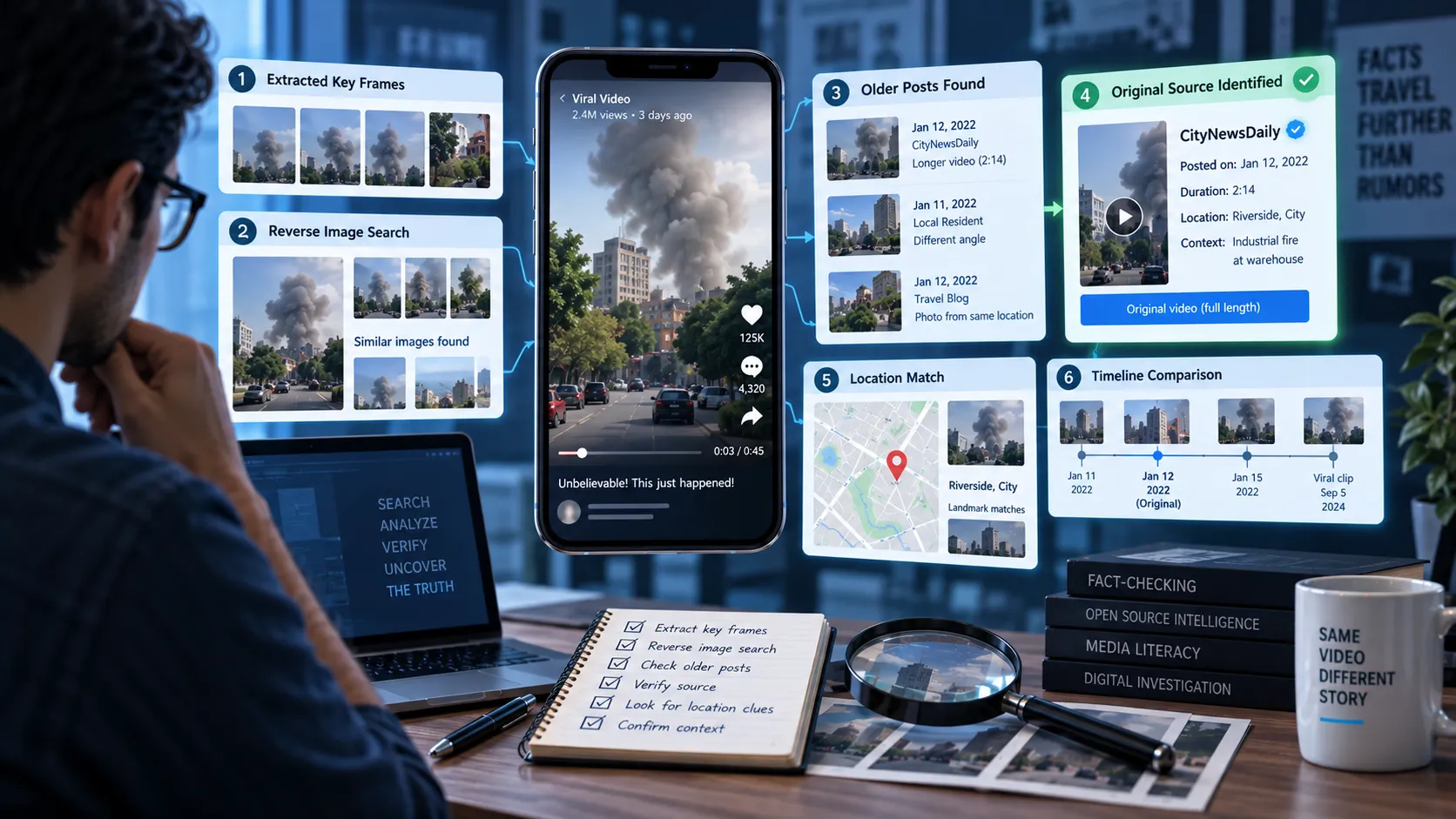
Video → keyframes/clues → search results → other versions → original source
Unlike a normal text search, you're starting with the content you want to investigate.
There isn't one universal reverse-video search engine that can reliably find every video on the internet. In practice, investigators often combine reverse image search, keyframe analysis, text searches, social media searches, and source verification.
Why Reverse Search a Video?
Reverse searching can help you discover:
- The original uploader
- Older versions of the video
- The actual date of the footage
- The original context
- News reports about the event
- Other platforms where the video appeared
- Edited or cropped versions
- Misleading captions
- Recycled footage
- The creator's original account
This is particularly useful when a viral video makes a surprising claim.
For example, a post might claim:
"This happened yesterday."
A reverse search could reveal that the exact same footage was published several years earlier.
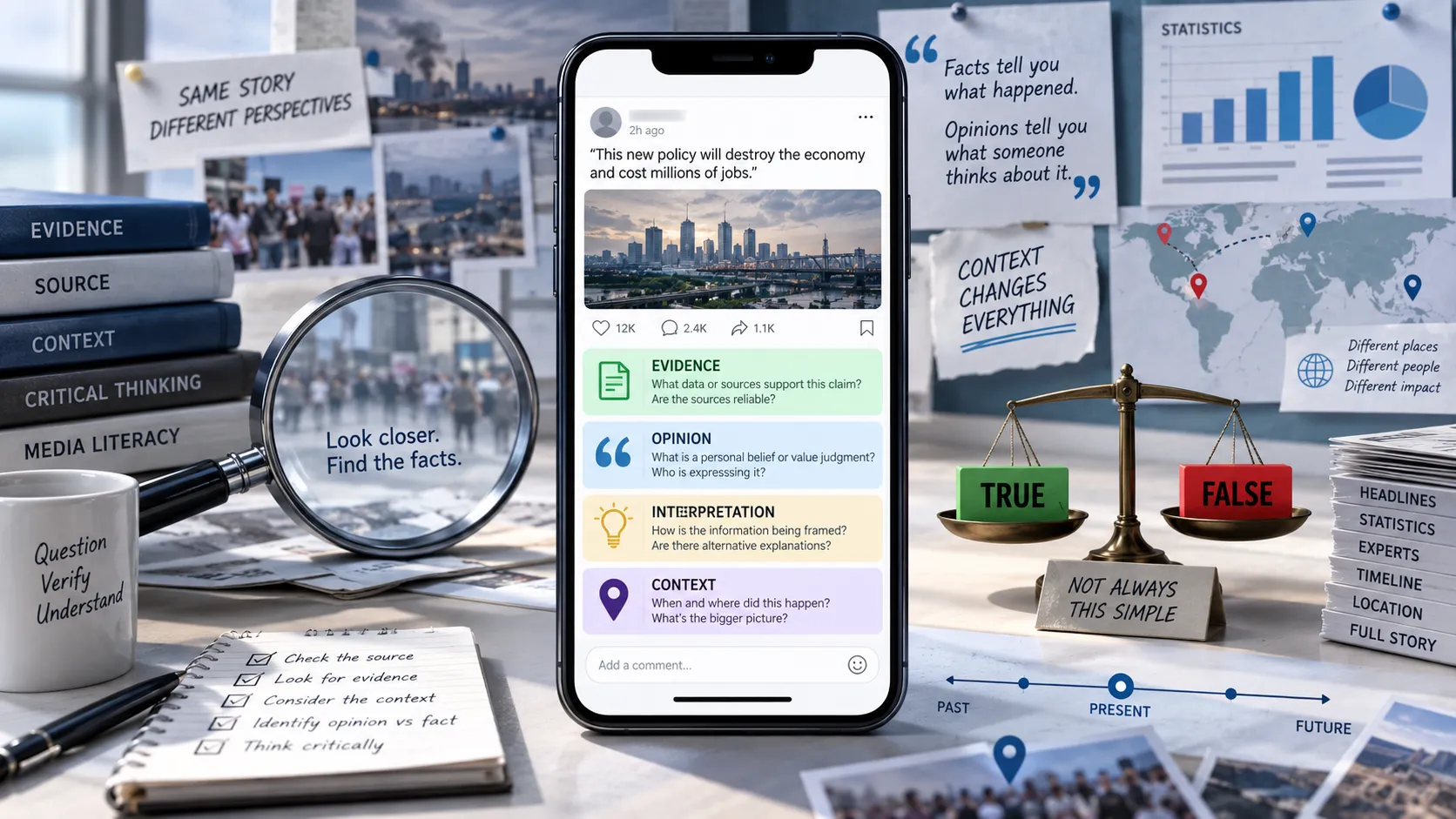
The video itself may be real. The context is what is false.
The Most Important Concept: Search the Frames
A video contains thousands of individual frames.
You usually don't need to search every frame.
Instead, find a few distinctive keyframes that contain information likely to appear elsewhere online.
Good keyframes include:
- Faces
- Buildings
- Signs
- Vehicles
- Logos
- Landmarks
- Products
- Unusual events
- Unique clothing
- Visible text
A clean frame can often produce much better search results than a screenshot filled with subtitles, buttons, usernames, or social media overlays.
How to Reverse Search a Video Step by Step
Step 1: Save the Video or Its URL
Start by preserving the video you're investigating.
Save:
- Video URL
- Platform
- Account username
- Caption
- Publication date
- Hashtags
- Description
- Visible watermarks
If you can legally and appropriately save a copy for investigation, keep the original file unchanged.
Don't edit the copy you're using as evidence.
Step 2: Watch the Entire Video
Before taking screenshots, watch the entire video.
Look for information that appears only briefly.
You might notice:
- A street sign
- A company logo
- A person's name
- A building
- A license plate
- A news channel logo
- A distinctive location
- A spoken phrase
Don't immediately jump to the most dramatic frame.
Sometimes a boring frame contains the clue that identifies the source.
Step 3: Identify the Most Searchable Frames
Pause the video at different moments.
Try to capture several frames.
For example:
Frame 1: Person speaking
Frame 2: Building in background
Frame 3: Street sign
Frame 4: Vehicle
Frame 5: Distinctive moment in the event
Search multiple frames rather than relying on one.
A reverse search might fail on Frame 1 but immediately find the source using Frame 3.
Step 4: Remove Unnecessary Visual Clutter
Before searching a screenshot, consider whether it contains distracting elements.
You may want to crop out:
- Play buttons
- Comments
- Social media navigation
- Usernames
- Captions
- Reaction icons
- Borders
Keep the important visual information.
For example, if you're searching for the building in the background, crop the image so the building occupies more of the frame.
Step 5: Reverse Search the Screenshot
Upload the screenshot to a reverse image-search service.
The search may return:
- Visually similar images
- Pages containing the image
- News articles
- Social media posts
- Older screenshots
- Related videos
The goal isn't necessarily to find the exact video immediately.
You're looking for connections.
One search result might reveal the name of an event.
Another might identify the location.
A third might lead to the original creator.
Step 6: Search Multiple Keyframes
This step is extremely important.
Don't stop after one reverse search.
Take several frames from different parts of the video and search them independently.
Why?
Because different frames expose different information.
Imagine a 20-second video:
- Frame A shows a person's face.
- Frame B shows a storefront.
- Frame C shows a street sign.
- Frame D shows the entire scene.
Frame C may be the one that leads directly to the original source.
Step 7: Search Visible Text
If there is text in the video, search it.
Look for:
- Headlines
- Store names
- Street names
- Signs
- Event names
- Organization names
- Captions
- Spoken quotes
Try exact searches when the phrase is distinctive.
For example:
"We have never seen flooding like this before"
You can also combine the phrase with a location or person's name.
Try several variations because reposts may change punctuation or wording.
Step 8: Search the Audio or Spoken Phrase
Audio can provide another route to the source.
Write down distinctive sentences from the video.
Then search them.
This can lead to:
- Original interviews
- News broadcasts
- Podcasts
- YouTube videos
- Transcripts
- Articles quoting the speaker
If the speech sounds unusual or highly specific, it can be particularly searchable.
Step 9: Search the Watermark
If the video contains a username or watermark, search it directly.
Try:
username + video topic
username + location
username + distinctive phrase
Don't assume the visible watermark is necessarily the original creator.
Someone may have reposted a video while keeping another person's watermark.
Your goal is to determine whether the account actually created or recorded the footage.
Step 10: Search Across Multiple Platforms
A video discovered on one platform may have originated somewhere else.
Search across:
- TikTok
- YouTube
- X
- News websites
- Creator websites
A video may have been uploaded to YouTube months before appearing on TikTok.
Likewise, a creator may have posted the original on Instagram while thousands of accounts later reposted it elsewhere.
Step 11: Build a Timeline
Once you've found multiple copies, compare their dates.
For example:
| Source | Platform | Date | Version |
|---|---|---|---|
| Account A | YouTube | Jan 12 | Full video |
| Account B | TikTok | Jan 14 | Cropped |
| Account C | Jan 15 | Edited | |
| Account D | X | Jan 16 | Caption added |
This suggests Account A may be earlier.
But remember:
Earliest public upload ≠ automatically original creator.
The person who uploaded the video first may have obtained it from someone else.
Step 12: Look for the Full-Length Version
Viral videos are often short clips taken from longer recordings.
Search for:
- Longer versions
- Original livestreams
- Full interviews
- Full news segments
- Earlier uploads
- Creator archives
A longer video can reveal what happened before and after the viral clip.
This can be critical for determining whether the short clip has been taken out of context.
Step 13: Compare Different Versions
Put the versions side by side.
Look for differences in:
- Duration
- Cropping
- Audio
- Captions
- Speed
- Resolution
- Color
- Cuts
- Missing sections
Suppose one version is 12 seconds long and another is 2 minutes long.
The longer version may reveal information that completely changes the interpretation of the short clip.
Step 14: Check the Date of the Original Footage
This is one of the most important parts of the investigation.
A video can be authentic but misrepresented.
For example:
Claim: "Video from today's protest."
Original source: Video uploaded five years ago.
That doesn't mean the footage is fake.
It means the claim attached to it is misleading.
Always separate:
Is the footage authentic?
from:
Is the current claim about the footage accurate?
Step 15: Investigate the Location
Use clues from the frame to determine where the video was recorded.
Look for:
- Street signs
- Store names
- Buildings
- Road markings
- Language
- Architecture
- Public transport
- Landmarks
- Weather conditions
You can then search:
location + event
location + date
location + distinctive phrase
This can lead to local news coverage or original eyewitness posts.
Step 16: Search for Independent Coverage
Once you think you've identified the event, search for independent reporting.
Look for:
- Local journalists
- News organizations
- Government announcements
- Emergency services
- Event organizers
- Other eyewitness videos
If multiple independent sources describe the same event, you have stronger evidence about the video's context.
Step 17: Check Whether the Video Was Edited
Finding an older copy doesn't necessarily mean you've solved the investigation.
Compare the viral version with the earliest version you found.
Check whether:
- Audio was replaced
- Sections were removed
- Text was added
- Faces were blurred
- The video was cropped
- Speed was changed
- Scenes were rearranged
A repost may transform the meaning of the original footage without creating any new footage.
Step 18: Check for AI Manipulation
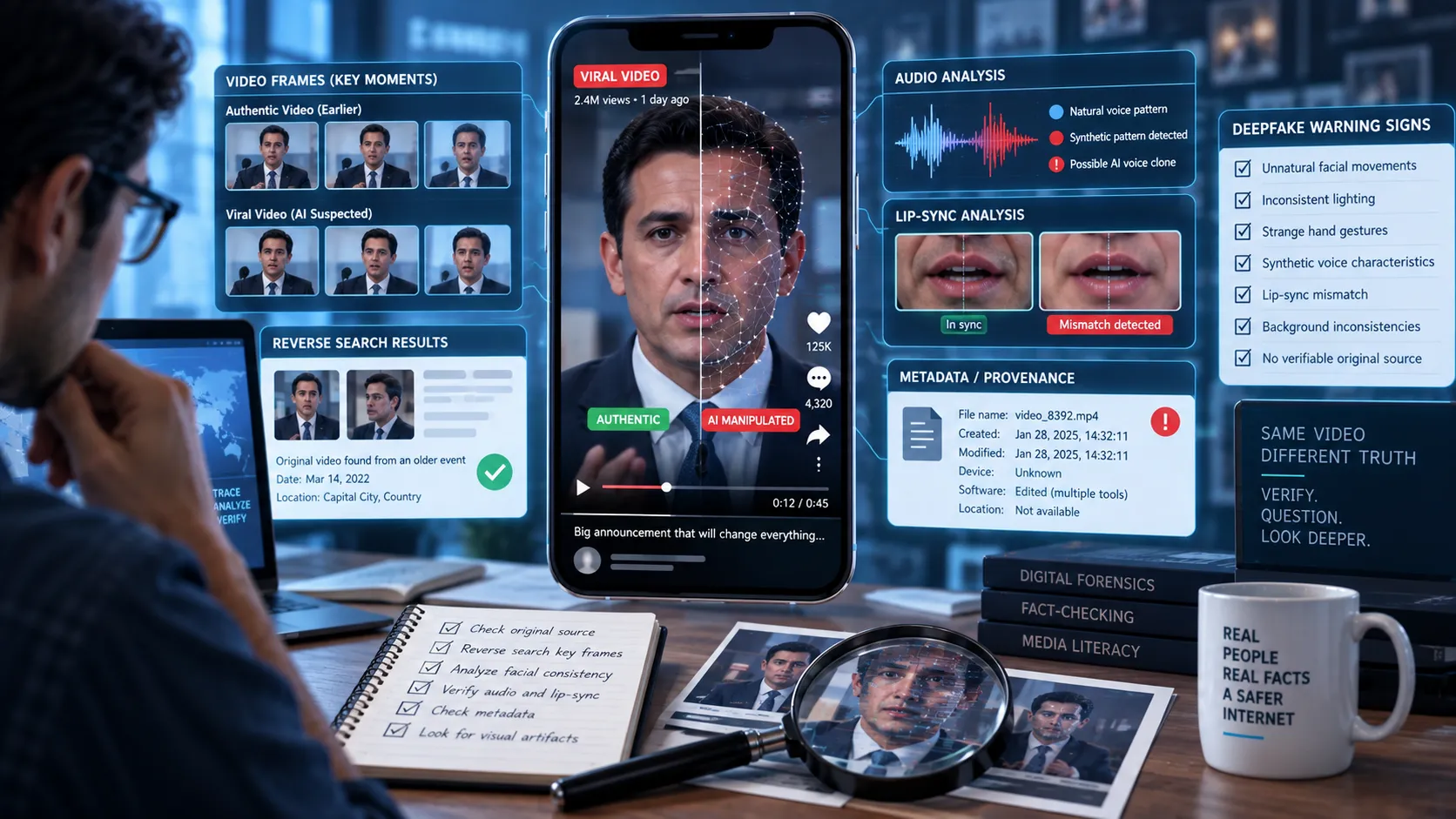
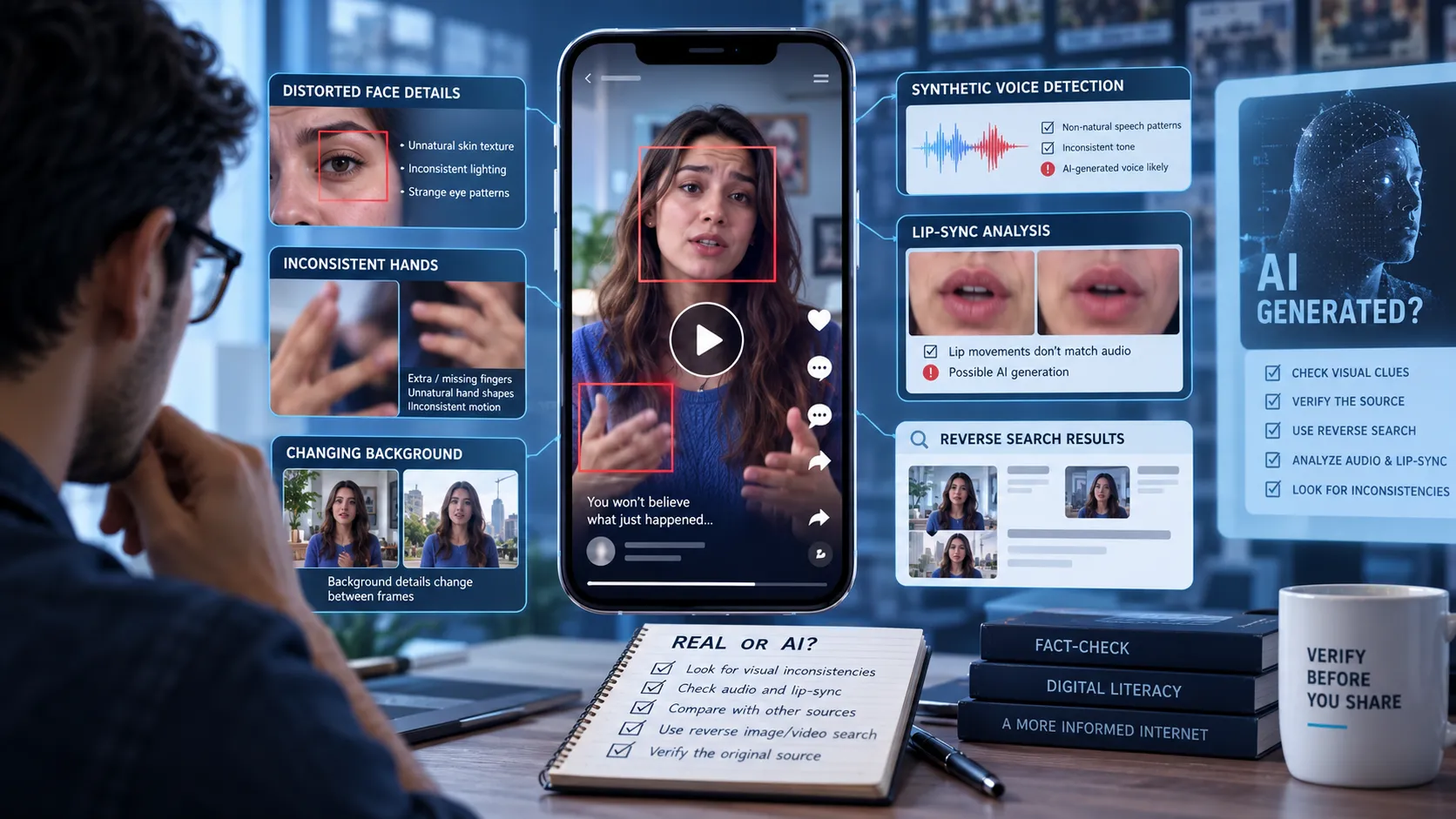
Reverse searching can also help identify manipulated or AI-generated content.
If you find an original version, compare it with the viral version.
Look for differences in:
- Face
- Voice
- Mouth movements
- Background
- Objects
- Lighting
- Text
- Timing
If the original shows one thing while the viral version shows something different, you've found evidence of manipulation.
Step 19: Check Metadata When Available
If you have access to the original video file, inspect its metadata.
Potentially useful information includes:
- Creation date
- Device
- Software
- Modification date
- Location information
However, social platforms frequently strip or alter metadata.
Therefore:
Metadata is supporting evidence, not proof.
A metadata timestamp alone cannot establish who created a video.
Step 20: Check Archived Pages
If you find a potentially important source that has been deleted or changed, an archived copy of the webpage may help.
Archived pages can sometimes show:
- Previous captions
- Older publication dates
- Deleted articles
- Earlier versions of webpages
- Original descriptions
This can be particularly useful when tracking the history of viral content.
How to Know If You've Found the Original Source
Finding an old upload is only the beginning.
Ask these questions:
1. Did this person actually record the video?
Look for evidence connecting the uploader to the event.
2. Is there a longer version?
An original creator is more likely to possess the complete recording.
3. Does the account have other footage from the same event?
Multiple related uploads can strengthen the connection.
4. Does the date make sense?
The uploader should have been able to access the footage at the claimed time.
5. Do independent sources identify the same creator?
This provides additional support.
6. Does the video match the original context?
A video being old doesn't necessarily make it the original.
The source should also make sense given the circumstances.
Reverse Video Search Example
Imagine you see a TikTok claiming:
"This massive hailstorm happened in Delhi today."
You want to investigate it.
Step 1
Save the TikTok URL and note the account name.
Step 2
Watch the video and notice a building sign in the background.
Step 3
Capture a clean frame showing the sign.
Step 4
Reverse search the screenshot.
Step 5
Find an Instagram post containing the same scene.
Step 6
The Instagram post is dated two years earlier.
Step 7
Search the building name and discover local news reports about a storm that occurred two years ago.
Step 8
Find an even earlier YouTube upload containing the full video.
Step 9
Compare the viral TikTok with the original.
You discover that the TikTok cropped the original video and added a caption claiming the event happened today.
Conclusion
The footage is likely authentic.
The caption is misleading.
This is exactly why reverse searching is so useful.
Common Reverse Search Mistakes
Mistake 1: Searching Only the Viral URL
A platform URL usually identifies the current post, not the original source.
You need to search the content itself.
Mistake 2: Using Only One Screenshot
One frame might not contain enough information.
Search several.
Mistake 3: Choosing the Most Dramatic Frame
The best search frame isn't necessarily the most interesting frame.
A street sign or building may be far more useful than the main action.
Mistake 4: Assuming the Oldest Result Is the Original
An old repost can still be a repost.
Always investigate the relationship between the uploader and the footage.
Mistake 5: Ignoring the Caption
The video and caption are separate pieces of information.
The footage can be real while the caption is completely false.
Mistake 6: Ignoring Longer Versions
A short clip may hide important context.
Always search for the full recording when possible.
Mistake 7: Stopping at the First Matching Result
The first matching result is a lead, not necessarily the final answer.
Follow the trail.
A Simple Reverse Video Search Checklist
Before deciding that you've found the source, check:
- Did I save the original viral post?
- Did I watch the entire video?
- Did I capture multiple keyframes?
- Did I remove unnecessary visual clutter?
- Did I reverse search several frames?
- Did I search visible text?
- Did I search distinctive spoken phrases?
- Did I investigate watermarks?
- Did I search multiple platforms?
- Did I compare upload dates?
- Did I search for a longer version?
- Did I investigate the location?
- Did I check independent sources?
- Did I compare different versions?
- Did I check for edits or manipulation?
- Did I distinguish the earliest upload from the actual creator?
If several boxes remain unchecked, your investigation probably isn't finished.
How Somiq Can Help With Viral Video Verification
Reverse searching is one part of verifying a viral video.
The bigger question is often:
"Is the claim being made about this video actually true?"
Somiq is designed to help users investigate claims made in short-form videos and evaluate the evidence surrounding them.
Instead of relying only on whether a video looks convincing, a stronger verification process considers:
- What the video claims
- Where it came from
- When it was originally published
- Whether the footage has been edited
- Whether the context has changed
- What independent sources say
- What evidence supports or contradicts the claim
This distinction matters because a viral video can be completely authentic and still be used to spread misinformation.
Final Takeaway
Reverse searching a video isn't about finding a single magical search button.
It's about following evidence.
Start with the video, extract useful frames and clues, search them across the web, compare different versions, investigate dates and locations, and trace the content back through its history.
Most importantly, don't stop when you find an older copy.
Ask whether you've actually found the original creator, or simply another repost.
And always separate the authenticity of the footage from the accuracy of the claim attached to it.
A real video can tell a false story when it is given the wrong date, location, or context.
Before sharing a viral video, reverse search it, trace its source, and verify what it actually shows.